adbrite

Star cricket live streaming

Watch live world cup matches live and exclusive here just click on the above banner.

Under this section all posts are related to hacking

You will find the posts related to hacking here the posts are nice and can be very useful to you.

The post under title Gadgets

Get to know about new and interesting gadgets.

This is default featured post under the category Computer

Computer related posts under this topic.

Showing posts with label WINDOWS. Show all posts

Tuesday, March 8, 2011

How to Create Animation in Windows Live Movie Maker using MS Paint


Windows Live Movie Maker is a fun application that is part of the Windows Live suite of applications that Microsoft has developed to give users the ability to jazz up videos to make them look more professional.
Unfortunately, there is still no way to create animation in Windows Live itself however. This doesn’t mean you’re dead in the water though, as there is a way to create animation by combining MS Paint with Movie Maker, and it all harkens back to the old days of cartoon animation.
To begin, load MS Paint and start start drawing something that you would like to animate. In this example, we will create the animated effect of a car moving across the screen from one side to the other.
We begin by drawing the car freehand using all default attributes.

Draw Car
Next, use the Select tool to “capture” the car. Draw a rectangle around the car as close to the car as possible, and then let go; next click on the Cut command on the main menu.
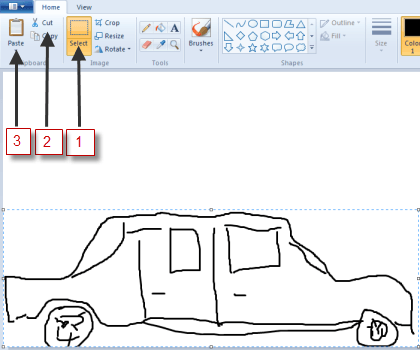
Selected, then Cut
As soon as you click on Cut, the car should disappear, then immediately click on thePaste icon. The picture you just cut out should now reappear, with the frame still around it, this means you can drag it to wherever you wish on the paint canvas. To create the illusion of movement, move the image (car) to one side of the screen to begin its journey across the screen, moving from left to right:

Front of Car Showing in Paint
Click the File command icon, and then choose Save as. Choose any filename you like, but end it with the number 1. In this case, we’ll call it c1, for car 1.
Next, hit the Back icon to undo what you just did; the car should disappear again. Click on the Paste icon again, to paste it back in, then move it again, just as you did the first time, only this time, put it slightly ahead of where you did the first time.

Midfront of Car in Paint
Then, do the Save as thing again, only this time, name it with a 2, e.g. c2.
Repeat this whole process as many times as it takes to get the car moved all the way across the screen with each step along the way saved as a unique series of  consecutive file names.
Then, close down Paint and fire up Windows Live Movie Maker; click on Add videos and photos:
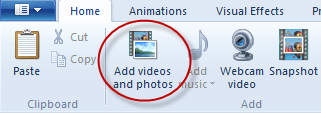
Add Videos and photos ot WLMM
Use the file manager tool that is launched to maneuver to and locate the files you just created in Paint. Double-click on the first one, in this case, C1, to open it. It should look something like this:
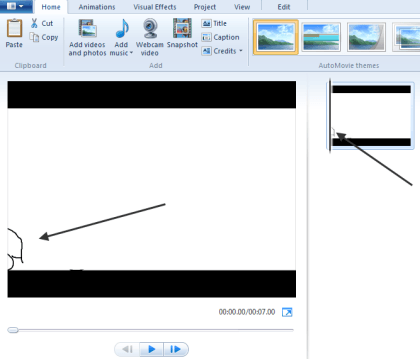
WLMM with first Image
It should show up in both the big main pane and in the little pane on the right, indicating that it will be the first image displayed in the “video.”
Open the rest of the images you created in Paint, one after another in sequence until all of the images have been loaded.
If you choose to play the movie as things are at this point, the time that each image is shown on the screen would be far too long, and thus it wouldn’t look animated. To fix that, we need to change the amount of time each image is displayed.
To do that, click on the the first image in the sequence, then while holding down the Shift key, move to the last one, then click on it as well. This should cause all of your images to be selected. It should look something like this:

Highlighted Sequence of Cars
Note: The bottom part of the image above was cut off for clarity.
Next, click on the Edit tab from the main menu and type .25, as in ¼ of a second, in the duration box. You want the application to hold onto each picture just long enough for it to be displayed,which means the player will move through all of them quickly enough to simulate motion.
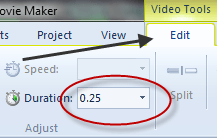
View and Edit Duration
Finish by clicking the Play button under the main viewing screen:
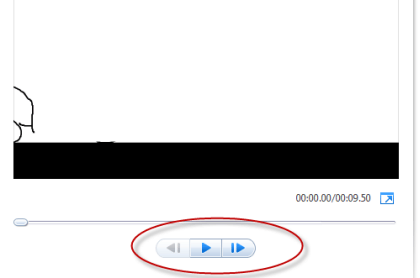
Play Button
You should see your images load sequentially, one after the other, quickly enough so that it appears as if your image is moving across on the screen. This is exactly how animation used to be done, except the images were drawn by hand, then flashed quickly in front of a camera which recorded the action as an animated movie.
This same technique can be used to simulate multiple characters moving around, or just their mouths moving  to simulate them speaking. It can also be done by taking a series of photographs of an object that is moved slightly between each take.
Monetize your Website or Blog with BidVertiser

Monday, January 17, 2011

Run Old Programs in 64-bit Windows 7 with Compatibility Mode Options

The switch from 32-bit versions of Windows to 64-bit versions has been a slow transition. Although Windows XP, Vista, and 7 all have 64-bit versions available, many people still opt for the 32-bit versions. The biggest reason for this is compatibility issues with older programs, hardware, and drivers.
Microsoft recognizes that wanting to use older programs is a barrier for people who may be considering moving to a 64-bit version of Windows. In anticipation of this barrier, the software giant built into Windows 7 the ability to select a variety of compatibility options to ensure that older programs have a good chance to work under the new 64-bit operating system.

Making Compatibility Changes for a Program

Before you begin using compatibility options in Windows 7, you should know a few things. First, there is no guarantee that selecting compatibility options will make all of your old software work. These options are simply an attempt to simulate the operating environment of older versions of Windows.
Second, you can make compatibility changes to either programs themselves or shortcuts to programs. Either way, you will need to undo these changes if you want to revert back to normal operating mode. If you make compatibility changes to a program shortcut and then delete that shortcut, you will have to locate either another shortcut to the program or the program’s exe file to undo or make further compatibility changes. If this sounds complicated, don’t worry it’s not. Choosing compatibility options for a program is as simple as selecting and deselecting options from a list.

Changing Compatibility Options

Let’s say you have an old program installed on a 64-bit Windows 7 PC and you are having trouble running it. The problem may be a compatibility issue. Although Microsoft has done a good job of maintaining compatibility when a user runs a 32-bit application on a 64-bit platform, not every contingency can be anticipated or resolved.
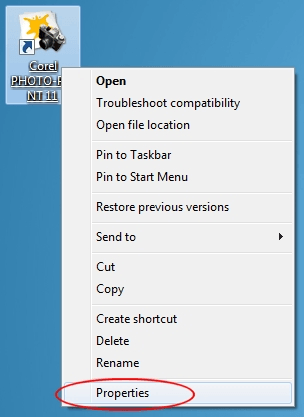
To begin using compatibility mode options in 64-bit Windows 7, right click on the program or shortcut to the program that is not running properly and chooseProperties from the menu.
Right Click and Choose Properties
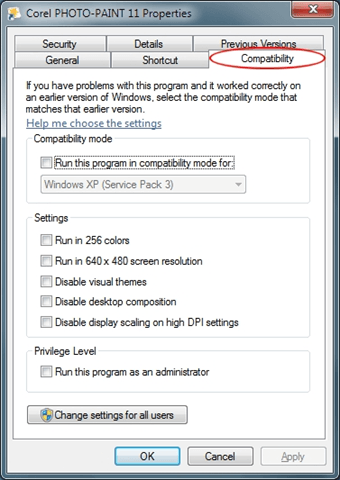
You should now be looking at the properties for the program. Click on theCompatibility tab and notice that you have a number of options available. Each of the options falls into one of three categories: Compatibility ModeSettings, orPrivilege Level.
Windows 7 Compatibility Options
Below is a description of each of these options.

Compatibility Mode

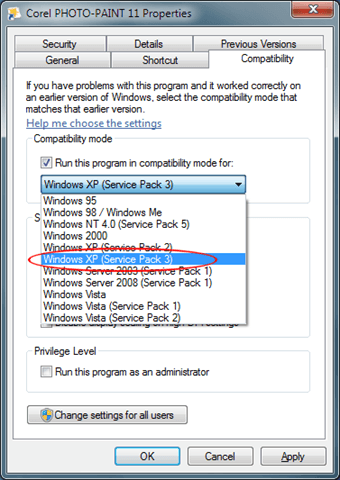
This option is a great choice when you know exactly under which version of Windows your program runs well. For example, if your program was released at the time when Windows XP was the reigning version of Windows, clicking the option box titled Run This Program in Compatibility Mode and choosing Windows XPfrom the drop down list is good choice.
Choose Windows XP Compatibility Mode
Notice that compatibility mode offers up to eleven choices ranging from Windows 95 up to Windows Vista. Also notice that you can even choose to run your program in compatibility mode using the settings for various service packs for these operating systems.

Settings

This section of compatibility options lets you fine tune your compatibility experience for your old program. Generally, these options are for programs that were written for and run on very old versions of Windows such as 95, 98, and ME.
For example, the native resolution and color depth of Windows 95 was only 640×480 at 256 colors. If your old program is running but looks too small or has strange colors, try these two options.
If Windows 7 warns you that the program is incompatible because of some video issue, consider trying the compatibility settings labeled Disable Visual Themes andDisable Desktop Composition. These settings often interfere with outdated video rendering in old programs.
Finally, if your program was written for a 4:3 ratio screen, consider trying the option titled Disable Display Scaling on High DPI Settings. This one will not scale the program to fit the current resolution and aspect ratio of your monitor.

Privilege Level

The last option on this window has to do with how Windows currently assigns permissions in Windows 7 and how it used to assign permissions in previous versions of the operating system. Windows 95, 98, and ME did not take advantage of multiple user accounts; everyone used the same desktop, had the same permissions, and had complete control over every aspect of the operating system. Essentially, everyone was a top-level administrator.
This is a problem for programs released under those conditions because they enjoyed nearly unbridled access to hardware, software, and drivers. Checking this option will ensure that the program has the permissions it needs to run as if it had this kind of control again.
It seems everyone has some old program that they wish would work under Windows 7. If you are running the 64-bit of Windows 7, you are even less likely to get that program running than if you use the 32-bit version.
However, by taking advantage of compatibility mode options you may be able to use your old software again and avoid having to consider other options such as dual booting your PC with an older version of Windows or running a virtual PC from within Windows 7.

  Monetize your Website or Blog with BidVertiser

Wednesday, December 1, 2010

Microsoft Says 86% Indians Buy Genuine Software

..

Although India may be a among the top countries where software piracy is on the rise but a recent Microsoft study has revealed that a majority of Indians buy genuine software. A global study conducted by software major Microsoft recently points us to the fact that more than 86 per cent of Indian customers purchase genuine software even though they retail at sky-high prices.
Microsoft had conducted this survey on over 38,000 people in 20 countries. According to the results of this survey, data loss and identity theft are the top-most concerns of the Indian consumers. Microsoft also said that more than 6000 Indian customers have reported incidents of pirated or illegal software to Microsoft India in the last two years.
Among other statistics, over 50 per cent consumers feel issues such as stolen password and lost data are more likely to happen with counterfeit software and as many as 75 per cent of  Indian consumers feel that genuine software was more secure and stable.

Tuesday, October 19, 2010

10 Reasons for Switching to Linux

Linux has always been the geek’s favorite operating system. However, times are changing
tux and Linux is now being promoted to suit the everyday user. Linux has its own share of pros and cons but the tide seems to be turning in its favor, as hardware vendors are starting to ship their systems with Linux pre-installed (a tactic to save OS costs). Curiosity about Linux is on the rise among computer users and the debate is on whether or not to make the switch to Linux.
In order to ease the confusion a little, here are the top ten reasons as to why you need to switch to Linux today!
1) Security: Linux is based on the rigid UNIX Operating system, which is famous for its strict User Permissions feature. Linux incorporates this feature into its core and this makes it virtually unbeatable in terms of security. The majority of viruses/malware on the internet are targeted towards the more popular Windows operating system, and they are useless against any Linux system. Thus Linux is the safest platform to browse the internet and use software applications.
2) Free as in beer: The phrase “Free and Open-Source Software”(FOSS)  is often confusing to some people, and to avoid this confusion, the community came up with the meaning of FOSS as Free as in freedom, not free as in beer. However, Linux is “free” no matter how you see it. Most Linux distributions are completely free of cost and you can download them immediately without paying a dime. Compare this to Windows and Max OS X, where you end up paying hundreds of dollars and still come up with problems every now and then.
3) Speed: One of the most popular flavors of Linux, called Ubuntu, boots up in just ten seconds. That’s right, all it takes is ten seconds from the power-up screen to reaching the desktop. This level of speed is unheard of in other popular operating systems. Linux races ahead in terms of performance speed as well. While Windows is famous for getting stuck innumerable times, or getting slow due to many active processes, Linux plows through such problems easily and offers its users a smooth session every time. Even after using it for five-six months with a large number of programs installed, Linux doesn’t show any difference in speed.
4) Hardware-independent: This is yet another selling point for Linux. No matter how old your system is, or what kind of hardware it is built from, you’ll definitely find a flavor of Linux ready to run on it. There are custom-made Linux flavors (called distributions) which are designed to support old hardware and run with minimum memory and hard disk requirements. This is a boon for people who cannot afford to buy the latest hardware in order to run the latest versions of their favorite OS.
5) Robust Platform: Linux isn’t 100% crash-proof but finding a user who faces crashes regularly is a very rare thing. Unless the user is running some unstable code/application, there won’t be any instance where the system crashes suddenly. This is the main reason why large corporations prefer to use Linux for running their servers.
6) Excellent community-support: Linux is backed-up by a huge community full of active users helping each other on the way. New users will undoubtedly have many questions on how to use their new Linux OS seamlessly. They can get their doubts cleared at one of the many forums providing free support. Anything, ranging from trivial installation issues, to developing a custom-built OS, can be queried about here.
7) Spoilt for choice: Linux is all about choices. There are many distributions to choose from, and each distribution may have a number of variations, such as 32-bit, 64-bit, desktop edition, server edition, and there’s almost always the choice of choosing between two popular desktop environments, known as GNOME and KDE. So many choices might seem daunting to the new user, but they actually help improve the experience for new users, who can choose the variant that suits them the best.
8) Learning about new environments: When Linus Torvalds first created Linux, he never expected that it would become one of the most intensely-researched operating systems ever! There are thousands of developers all over the world hacking (not that hacking!) into the Linux kernel trying to make useful changes and improve the experience for the whole community. While regular users need not bother about coding or such, they will automatically get to learn about using different kinds of environments. Using Linux means learning small tricks that make it a fun experience. This doesn’t mean the users need to pore over endless tutorials to use Linux; they will learn these tricks as they get used to the environment over time.
9) Encouraging open-source software: Open-source software is touted to the future of the software industry. While not every developer would like to release their software free of cost, making the source-code open would definitely help in stabilizing the software. Encouraging users to use Linux would help support the cause of open-source software in a large way.
10) Free as in freedom: This may not seem much to new users, but for those with programming skills, Linux proves to be a gold-mine because it comes along with the source-code, and the users are  free to modify it as they like and re-distribute it as well. This is a unique feature of open-source software and Linux utilizes it in a huge way.
Each of these reasons could be expanded into a novella-sized article, but the purpose of this article is to give you ten quick reasons for switching to Linux. Now that you’ve got them, why not consider  giving it a try? Discover the freedom of using Linux and you’ll soon wonder why you didn’t shut down your Windows earlier!

Wednesday, July 14, 2010

Confidential Windows 8 Details Leaked

Windows 8 is still a long way off, but Microsoft has already started communicating with OEMs (Original Equipment Manufacturer) regarding the general direction they wish to take with Windows 8. Microsoft enthusiast, Francisco Martin, managed to get his hands on some of the confidential documents sent under non-disclosure agreement to select partners.

One of the areas, Microsoft is putting a lot of emphasis on is the system startup time. Microsoft wants Windows 8 enabled systems to focus on POST performance, S3 resume support and general performance optimizations for each of the Off states.

Windows 8 will also be better adapted to take advantage of modern trends like facial recognition for user authentication, automatic display adjustment through ambient light sensors and premium media experiences such as stereoscopic 3D and Wireless TVs. All this will be complemented by cutting edge graphics, which can be leveraged by developers to provide a rich user experience.

As expected, Windows 8 will support high speed connectivity options like USB 3.0 and Bluetooth 3.0. Microsoft is also working on improving Bitlocker (hard disk encryption tool

) and System Restore to make them more functional and easier to use. Windows 8 will feature a new factory reset option, to restore your system to the original condition.

I am sure that this is only the beginning. In the coming weeks and months, we will be learning more about Windows 8. Stay tuned to Techie Buzz for mor

clicksor

Related Posts Plugin for WordPress, Blogger...

Share

Twitter Delicious Facebook Digg Stumbleupon Favorites More