adbrite

Star cricket live streaming

Watch live world cup matches live and exclusive here just click on the above banner.

Under this section all posts are related to hacking

You will find the posts related to hacking here the posts are nice and can be very useful to you.

The post under title Gadgets

Get to know about new and interesting gadgets.

This is default featured post under the category Computer

Computer related posts under this topic.

Showing posts with label COMPUTER TRICKS. Show all posts

Tuesday, March 8, 2011

How to Create Animation in Windows Live Movie Maker using MS Paint


Windows Live Movie Maker is a fun application that is part of the Windows Live suite of applications that Microsoft has developed to give users the ability to jazz up videos to make them look more professional.
Unfortunately, there is still no way to create animation in Windows Live itself however. This doesn’t mean you’re dead in the water though, as there is a way to create animation by combining MS Paint with Movie Maker, and it all harkens back to the old days of cartoon animation.
To begin, load MS Paint and start start drawing something that you would like to animate. In this example, we will create the animated effect of a car moving across the screen from one side to the other.
We begin by drawing the car freehand using all default attributes.

Draw Car
Next, use the Select tool to “capture” the car. Draw a rectangle around the car as close to the car as possible, and then let go; next click on the Cut command on the main menu.
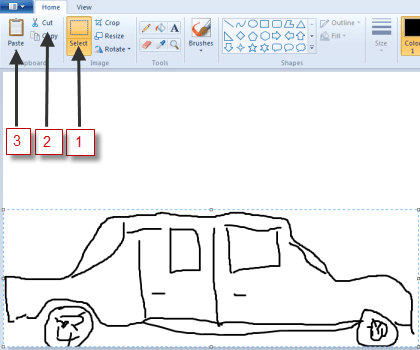
Selected, then Cut
As soon as you click on Cut, the car should disappear, then immediately click on thePaste icon. The picture you just cut out should now reappear, with the frame still around it, this means you can drag it to wherever you wish on the paint canvas. To create the illusion of movement, move the image (car) to one side of the screen to begin its journey across the screen, moving from left to right:

Front of Car Showing in Paint
Click the File command icon, and then choose Save as. Choose any filename you like, but end it with the number 1. In this case, we’ll call it c1, for car 1.
Next, hit the Back icon to undo what you just did; the car should disappear again. Click on the Paste icon again, to paste it back in, then move it again, just as you did the first time, only this time, put it slightly ahead of where you did the first time.

Midfront of Car in Paint
Then, do the Save as thing again, only this time, name it with a 2, e.g. c2.
Repeat this whole process as many times as it takes to get the car moved all the way across the screen with each step along the way saved as a unique series of  consecutive file names.
Then, close down Paint and fire up Windows Live Movie Maker; click on Add videos and photos:
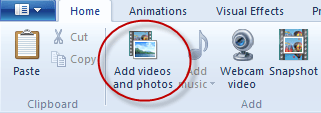
Add Videos and photos ot WLMM
Use the file manager tool that is launched to maneuver to and locate the files you just created in Paint. Double-click on the first one, in this case, C1, to open it. It should look something like this:
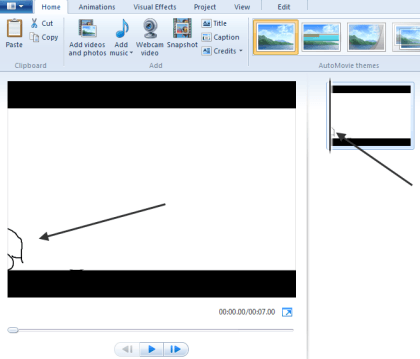
WLMM with first Image
It should show up in both the big main pane and in the little pane on the right, indicating that it will be the first image displayed in the “video.”
Open the rest of the images you created in Paint, one after another in sequence until all of the images have been loaded.
If you choose to play the movie as things are at this point, the time that each image is shown on the screen would be far too long, and thus it wouldn’t look animated. To fix that, we need to change the amount of time each image is displayed.
To do that, click on the the first image in the sequence, then while holding down the Shift key, move to the last one, then click on it as well. This should cause all of your images to be selected. It should look something like this:

Highlighted Sequence of Cars
Note: The bottom part of the image above was cut off for clarity.
Next, click on the Edit tab from the main menu and type .25, as in ¼ of a second, in the duration box. You want the application to hold onto each picture just long enough for it to be displayed,which means the player will move through all of them quickly enough to simulate motion.
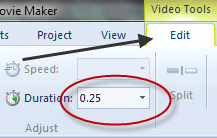
View and Edit Duration
Finish by clicking the Play button under the main viewing screen:
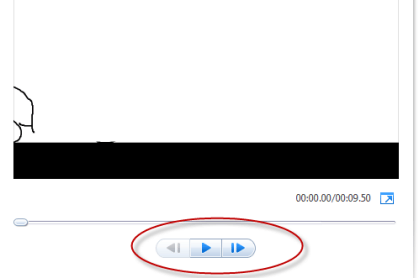
Play Button
You should see your images load sequentially, one after the other, quickly enough so that it appears as if your image is moving across on the screen. This is exactly how animation used to be done, except the images were drawn by hand, then flashed quickly in front of a camera which recorded the action as an animated movie.
This same technique can be used to simulate multiple characters moving around, or just their mouths moving  to simulate them speaking. It can also be done by taking a series of photographs of an object that is moved slightly between each take.


Monetize your Website or Blog with BidVertiser

Tuesday, March 1, 2011

Access Files on your Computer from Anywhere


Network: Remote Desktop Vpn Juniper.net/Remote+Desktop+Vpn
Clientless Remote Network Access for Enterprises; View Free Demo!
Access Files over the InternetThe problem: You have documents, photos, music and other important files on the home computer. How can you “remotely access” these files from your office computer or, when you are travelling, from your mobile phone?
The solution: The simplest solution would be that you copy all your data from the home computer on to a portable hard drive and carry it around but this is obviously a bit cumbersome approach as it requires you to manually sync the home computer and your portable disk.

Access Files on your Computer over the Internet

There are couple of ways by which you can retrieve files stored on your home computer from anywhere else using a regular Internet connection.
Option 1: Using Online Backup
You can use an online backup service like SugarSync, Carbonite, SkyDrive or even Dropbox– they provide desktop utilities that will automatically upload files on your home computer to the Internet and you can then access these files through the web browser of any other Internet connected computer.
The upside is that your files will always be available to you even if the home computer is not running. SugarSync and Carbonite have a mobile optimized website so you can access files from any mobile phone as well.
The downside is that if you are using any of these services for the first time, you’ll to wait until they upload all your data to the cloud and this process may take long if you have too many files on the home computer.
Option 2: Using Desktop Sharing Software
There are free desktop sharing software like TeamViewer and UltraVNC that also let you remotely access your computer files from anywhere else. LogMeIn Pro and CrossLoop Home are some other good options for transferring files from a remote computer but these are paid services.
If all your computers are running Windows, you can use the built-in remote desktop connection feature of Windows (available in XP and later) to access your home computer from another Window computer over the Internet.
With Desktop Sharing software, you’ll always have access to all your files but one big limitation is that it requires that the remote computer stays on. Also, none of these options will help you access files on a mobile phone except LogMeIn which has an iPhone app.
Option 3: Access Files Directly through the Browser
Online backup services, discussed above, will copy files to their own servers before you can access them for anywhere else. Screen sharing services are often slow and they won’t work on most mobile devices. Let’s now explore another set of services that allow you download files directly from the home computer.
Copernic, like Google Desktop, is a popular desktop search software that you may use to find emails, documents and other files on your Windows computer. They have a paid component called myCopernic on the Go that lets you remotely search for content stored on the home or office computer. You can preview the search results and then download them to your mobile phone or remote PC.
With Opera Unite, you can easily turn your computer into a web server and instantly access files and folders on that computer from any other web browser (including that of mobile phones). Opera Unite is a standard web server and therefore you’ll be downloading files directly from the computer – they’re not uploaded anywhere else.
Another option is GBridge that lets you setup a virtual private network using your existing Google Account. Companies use VPNs to let employees access corporate data over a public network (Internet) and with GBridge, even home users can build their own VPNs to access remote files more securely.
Windows Live Sync at sync.live.com is another great choice for remotely accessing files over the Internet. Just install the Live Sync client on your computer and you can then access the entire hard drive of that computer simply through the Windows Live Sync website.
Live Sync is available for both Mac and Windows. The new version of Live Sync is even better and it has integrated online storage (Live Mesh) so you’ll be able to access your important file even if the remote computer is off.
Finally, you may also want to check out HomePipe – this is an extremely easy and free service that lets you access your home files and media from any other computer or mobile phone. Install the HomePipe Agent and all files on that computer will instantly become available through the web. They also have apps for iPhone and Android phones.

Monetize your Website or Blog with BidVertiser


Monday, February 28, 2011

Remote Control for PC


Remote Control for PC - an application for Nokia phone to control Windows PC presentations and multimedia players.


Remote Control for PC turns your mobile phone into a universal remote controller for Windows computer. The application is perfect for home entertainment and business purpose.
The software will get you to remotely manage your PCs favorite apps, navigate with the cursor and perform mouse button clicks.

Software supported: Microsoft Office PowerPoint, OpenOffice presentations,  Winamp, Windows Media Player, WinDVD, VLC player, DivX player, QuickTime, Media Player Classic, MPC Home Cinema, Youtube flash player.

Requirements:
Windows XP, Vista or Windows 7 OS and Nokia S60 phone (both: 3rd and 5th edition) or Symbian^3 phone.
For example: Nokia E50, E60, E61, E62, E65, E70, N71, N73, N75, N77, N80, N91, N92, N93, 5700, 6110, 6120, 6121, 6124, 6290, E51, E63, E66, E71, N76, N81, N82, N95, 5320, 5630, 5730, 6210, 6220, 6650, 6700, 6710, 6720, 6730, 6730, 6760, 6788, 6790, C5, E5, E52, E55, E72, E73, E75, N78, N79, N85, N86, N96, X5-00, X5-01, 5228, 5230, 5235, 5250, 5800, C5-03, C6-00, N97, N97 mini, X6-00, C6-01, C7-00, E7-00, N8


Monetize your Website or Blog with BidVertiser

Tuesday, February 22, 2011

Top Free Screen Recorders to Record Your Screen Activities


These days recording screen activities have become quite a popular way of blogging and doing presentations. The screen recorders act just like the print screen function but the difference is that it continuously records all your on screen activities just like a camcorder or digital camera.
These softwares can also be useful when you want to create screen casts for software usage instructions or a video to report a bug that occurred in a software.
There are many screen recording softwares available for you to record the screen activities, here are few of the best screen recorders that will allow you to create videos and presentation from your activities and which are free to use.

CamStudio Open Source

CamStudio is a open source software that allows you to record your screen activities and create AVI videos out of it, it also includes a built-in SWF producer that allows you to create bandwidth friendly flash videos.
In addition to that CamStudio allows you to add high-quality sound to the video and also create picture-in-picture videos by using your webcam videos.
This is one great software that you should definitely have to record your screen activities and create videos out of it.

Free Screen Recorder

Free Screen Recorder is another screen recording software that can be used to capture screen activities into a AVI video file. Free screen recorder records every moment including mouse cursor movements, typing etc.
You can also record voice from the microphone which makes it easier to add your own commentary while the video is being recorded.

Freez Screen Recorder

Freez Screen Recorder allows you to record videos and also pause them. Like all the other softwares you can record any region of the screen or activities in a particular window in addition to recording all the activities of the full screen.
It also supports voice recording from the microphone, videotape or Internet.

AutoScreenRecorder

AutoScreenRecorder allows you to create AVI files by recording screen activities. You can record the mouse pointer, a rectangle area or choose to record activities taking place in a application window. You can also choose to record the full screen for activities.
You can also choose to buy a full fledged version of AutoScreenRecorder which adds in more features to the software like generating flash video files and recording voice and sound in the video.

Summarizing

If you are looking for softwares to create demo videos and presentations or even plan to start video blogging, these tools are quite handy. Not only are they completely free to use but also add more utility to your computer life.
If you think there are better options please do share it with other readers using the comments form. I am definitely looking to try out more alternatives.


  Monetize your Website or Blog with BidVertiser

Thursday, January 27, 2011

Do Everything on College Computer That You Thought was Impossible


secret things inside officeLife inside an College firewall can be very restrictive for some students.
You are not allowed to check your personal email accounts, tons of websites are banned (loss of worker productivity), you cannot store music on your College computer (because people think all MP3s are illegal), there are no permissions to install new software, YouTube videos are prohibited and almost all Instant Messaging software are blocked.
There are two options here – either you stick to the official rule book (and stay safe) or if you are adventurous and willing to take risks, read the following guide that shows how to do everything inside College that you otherwise thought was impossible.
Watch YouTube videos at Work: Your friend has sent you a link to some funny YouTube video clip but you cannot watch it inside office since YouTube is banned. The easy workaround is vixy.net - just copy-paste the YouTube URL and you can save the video locally as an AVI file. Vixy will also allow you save YouTube videos as MP3 files. A similar service that you may also bookmark is zamzar.com/url.
fe-2Instant Messaging inside Office: IM software, like Yahoo! Messenger or Google Talk, are probably the worst nightmare of any IT department and therefore they are blocked in most workplaces.
If you are finding it extremely tough to stay out-of-touch with your IM buddies during Office hours, try meebo.com – it requires no installation and runs inside your web browser. Google Talk and Yahoo! Messenger also provide web based version of their IM software. [Meebo review]
Read Your Favorite Blogs: If you are working in a BPO or financial services company that has imposed a blanket ban on all websites citing security reasons, you can still keep in touch with your favorite blogs through email. Services like SendMeRSS (of NBC Universal) or FeedBlitz will send you RSS feeds straight in your email Inbox – the moment there’s a new blog post, you can read it just like any other email message.
When a Web page is Inaccessible: This is another common problem – the email message contains a link to some article on a website (say Forbes.com) but you cannot read the full story as access to that website is restricted at work. No worries as you can still read that article through email:
Just send an email addressed to www@web2mail.com with the URL of the web page in the Subject field (e.g. www.cnn.com) and you’ll soon find a copy of that web page in your Inbox. A similar service is provided by www4mail@wm.ictp.trieste.it - it will also fetch websites for you through email though in this case, the site address should go in the body of the email message. [Useful email addresses]
fe-1While Surfing the Web, Pretend That You Are Working: It can be a bit embarrassing when you are surfing some non-work related websites at work and the boss walks-in. You try to minimize the browser or hide it behind Microsoft Outlook but the sudden panic makes everything clearer.
What you really need here is WorkFriendly – it’s actually a wrapper website that make your web browser look like Microsoft Word.
The web pages inside Work Friendly look as if you are reading a Word document. And there’s a wonderful Boss Key that replaces the web page with a proper Word document in a click – handy when you hear the footsteps of your boss.
Listen to Music Stored on Home Computer: You have an excellent music collection on the home computer that you would love to listen at work – the simple option is to burn your home MP3 on a DVD or if that sounds lot of effort, try Leaf at leafnetworks.net – it’s a free no-geeky solution to help you access files on the home computer from any other computer.
The only requirement for Leaf Networks is that the source machine (your home computer) should be up and connected to the internet. An alternate solution is SimplifyMedia that works with iTunes and will also maintain the music playlists across computers.

  Monetize your Website or Blog with BidVertiser

clicksor

Related Posts Plugin for WordPress, Blogger...

Share

Twitter Delicious Facebook Digg Stumbleupon Favorites More